
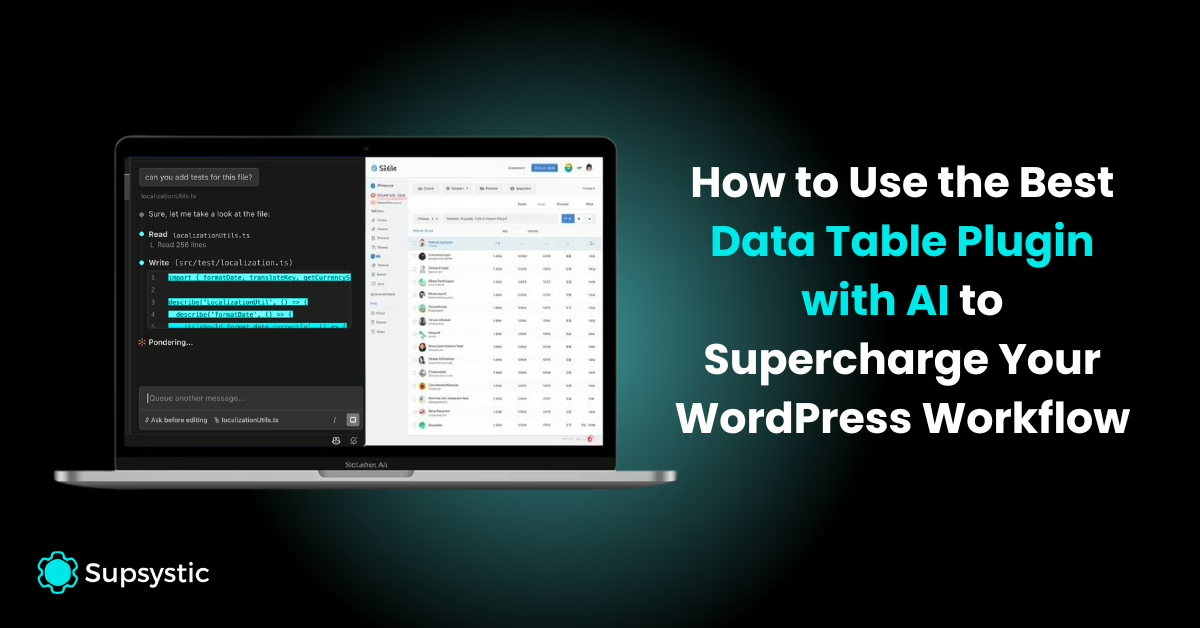
Use plain English to create tables, update data, and get insights — directly inside WordPress.
Most WordPress table plugins are built to store and display data.
You add rows. You format columns. You update things manually.
That works — but it’s slow.
And it’s so yesterday!
AI data tables for WordPress introduce a different way of working with data.
Instead of clicking through settings and editing rows one by one, you can simply instruct your table:
- “Show me what’s changed”
- “Highlight specific entries”
- “Summarise this data”
- “Increase all prices by 5%”
- “Create a table from this spreadsheet showing sales over 3 years by region”
You’re working with it.
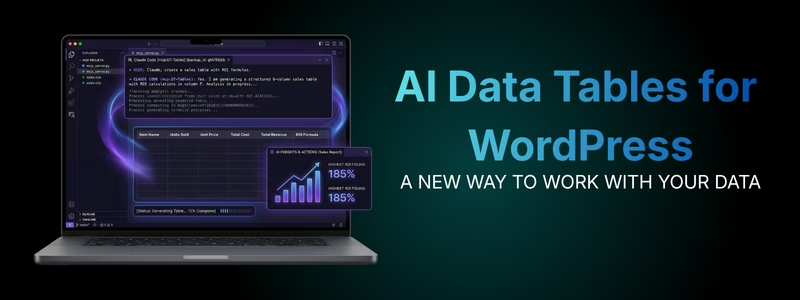
Why Choose an AI Data Table Plugin?
The digital landscape is moving faster than ever. A traditional plugin is just a container — an AI data table plugin is a collaborator.
Instead of spending hours working through rows and Excel exports, you can communicate with your data in plain English — and have it do the work for you.
Here’s what that actually means:
- Create a table from raw data in seconds
- Update hundreds of rows instantly
- Ask questions like “top 10 products by revenue”
- Let clients safely make small changes without breaking anything
No formulas. No manual updates. No back-and-forth.
Supsystic has built the infrastructure to make this possible.
Our MCP server allows your AI assistant to “see” and work with your tables in real time — giving you a faster, smarter way to manage data in WordPress.
Level 1: Interrogate Your Tables (Free Plugin + AI Add-On)
The first step is simple — and powerful.
You can connect AI to your existing tables and start asking questions. Like: “Show me the top 10 products by revenue for last month.”
Instead of manually scanning rows or exporting data, you can:
- Identify changes or anomalies
- Highlight values outside a range
- Summarise large tables instantly
- Compare data across rows or columns
For end users, this means faster answers without digging through data.
For developers, it means fewer requests to check, analyse, or explain what’s happening inside a table.
At this level, AI acts as a smart layer over your existing tables.

Level 2: Create and Manage Tables with AI (Pro Version + AI Add-On)
This is where AI moves from answering questions to actually doing the work. It’s the level where things really change.
Instead of just analysing data, you can start instructing your tables to update and evolve.
You can:
- Create new tables from structured input
- Update multiple values at once
- Apply formatting rules across entire datasets
- Modify tables without touching individual rows
Instead of manually editing rows, you can simply describe what you want — and the AI applies those changes across your table instantly.
For example:
“Increase all values in this column by 5% and highlight anything above a set threshold.”
Done.
No exporting. No re-importing. No manual edits.
For end users, this means routine updates take seconds instead of hours, with far less risk of breaking anything.
For developers, this means:
• Less time spent on repetitive updates
• Fewer client support requests
• The ability to let clients make simple changes safely — without breaking anything
Instead of maintaining tables manually, you’re guiding them.

Mastering the AI Data Table Plugin Workflow
How do you actually use an AI data table in your daily work? It all comes down to “Conversational Creation.”
Build Tables with an AI Data Table Plugin
Skip the manual setup. Simply tell the AI data table plugin: “Create a new ‘Q2 Performance’ table with columns for Name, Revenue, and Growth %.” The AI does the building; you do the thinking.
Edit Rows via an AI Data Table Plugin
Need to update 50 prices at once? Tell the AI data table: “Update all items in the ‘Electronics’ category by 15%.” Watch the cells update in real-time without ever opening the WordPress backend.
This approach works anywhere you rely on structured data:
- Product or service listings
- Internal reference tables
- Directories and comparison tables
- Any dataset that needs regular updates
If your tables change over time, this removes a large part of the manual workload.
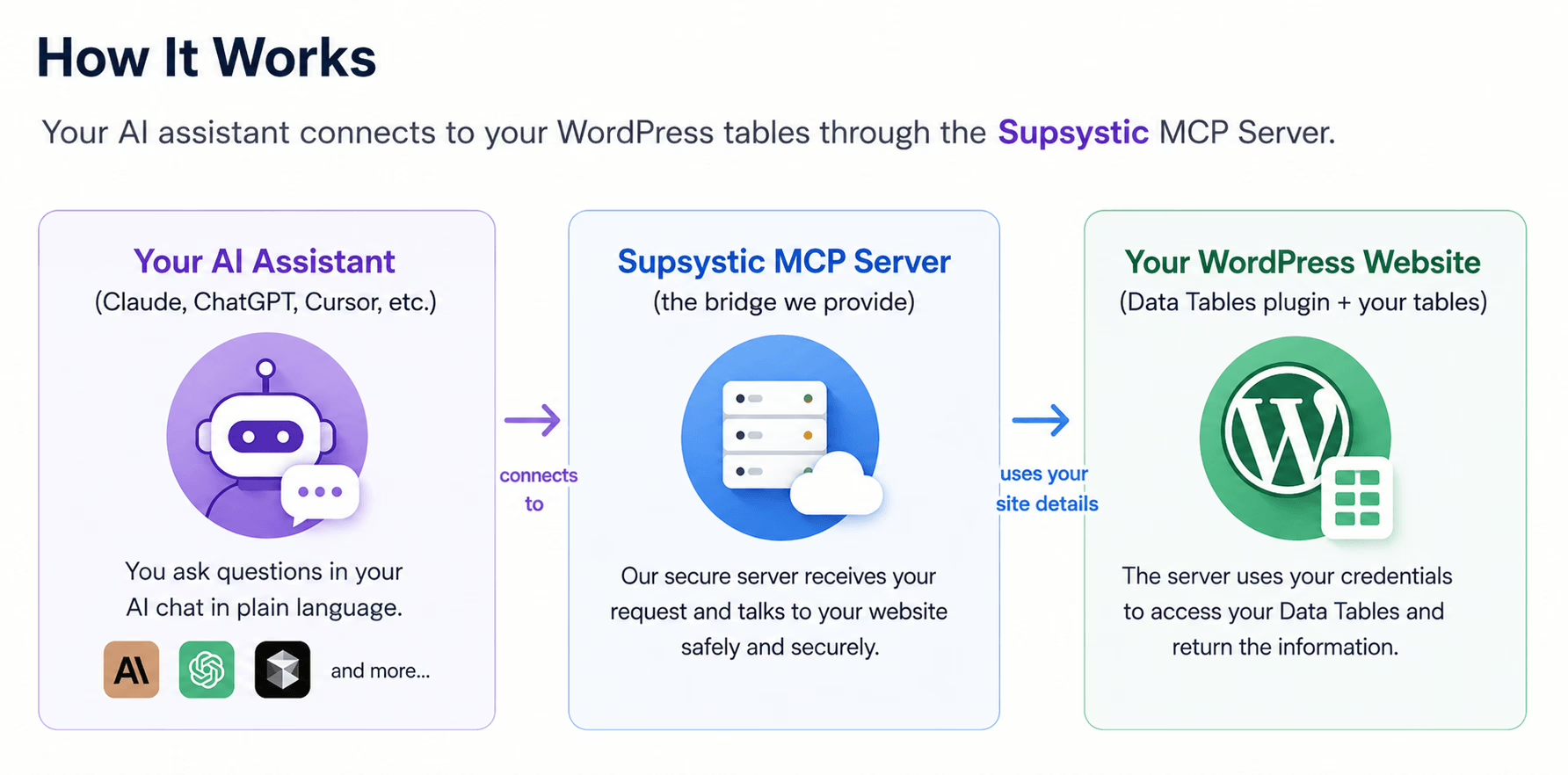
How to Connect Your AI Assistant to Your WordPress Tables
Setup takes 2–3 minutes and requires no technical configuration.
Note: Supsystic provides the MCP connection layer. You do not need to install Node.js, run terminal commands, or set up your own MCP server.
Step 1 — Create an Application Password in WordPress
In your WordPress dashboard, go to:
Users > Profile > Application Passwords
Create a new Application Password and copy it.
You’ll use this instead of your normal WordPress password in Step 4.
Step 2 — Open your AI assistant’s connector settings
For Claude:
Settings > Connectors
For other AI tools, look for:
Tools, Integrations, Connectors, or MCP
Step 3 — Add the Supsystic connector
Choose:
Add Connector
or
Add MCP Server
Paste in the Supsystic MCP connection details.
Step 4 — Enter your website details
Add:
- Your WordPress website URL
- Your WordPress username
- Your Application Password (from step 1)
This gives your AI permission to access your Data Tables.
Step 5 — Test the connection
In your AI chat, type:
List all my tables
If your tables appear, you’re connected.
Once this is set up, you won’t need to revisit it — you’ll be working with your tables through simple instructions from here on.
If you’re not comfortable with the setup, it’s something your developer can handle quickly. Or reach out to our Support Team.
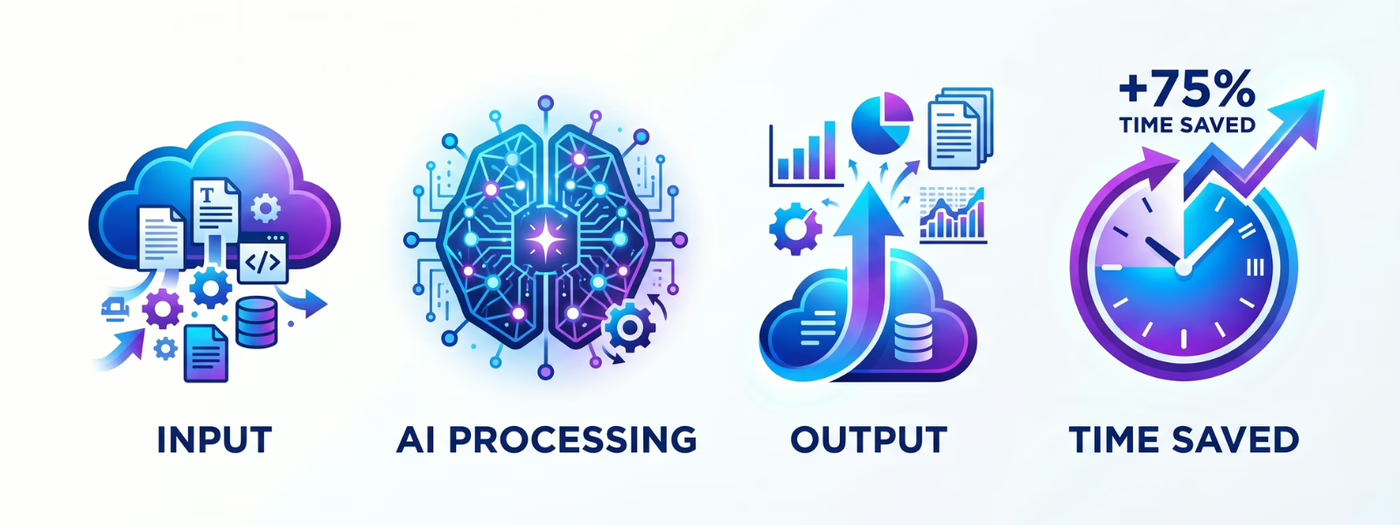
This workflow connects your WordPress tables with a paid AI tool and our AI add-on.
Once it’s set up, everything is handled through simple instructions.
Everything happens inside WordPress — you’re working directly with your existing tables, not exporting data or jumping between tools.
Changes are applied to your data and table structure — with styling updates possible where supported.
Maximizing ROI with Intelligent Data Management
AI Data Tables for WordPress doesn’t replace your workflow.
It removes the slow parts of it.
At the basic level, you can interrogate your data and get answers instantly.
At the next level, you can update and manage your tables without manual effort.
Start Working with Your Data — Not on It
Connect your AI assistant and try your first command in minutes:
-
- “List all my tables”
- “Increase all prices by 5%”
- “Create a table from this data”
Frequently Asked Questions
The Free Plugin Version of Data Table Generator offers free AI “Read” access via the MCP server. However you will need the AI Add-on to engage with the MCP server ($30 – get it here). This allows you to analyze, summarize, and query your data table using your preferred AI tool. If you upgrade to the Pro Version, you can access the full suite of ask/create/edit/features with the same AI Add-on (no need to upgrade your Add-on).
No. The setup is straight forward, and all daily use is entirely based on natural language. If you can type a message in a chat box, you can manage your data tables.
Absolutely. The connection uses WordPress Application Passwords and the secure MCP protocol. Your data is only accessed by the AI assistant you authorize.
Absolutely. You don’t need to start over. The data table plugin AI connects to your current Supsystic tables and understands them instantly.
Yes. You can ask your data table plugin AI to apply complex formulas, calculate totals, or format rows based on specific conditions without touching a single piece of code.
Yes — AI can update your table’s structure and styling where those options are available in the plugin.
This includes things like:
- Column layout
- Headers
- Basic styling and formatting
More advanced visual design (like full page layouts) is still handled by your theme or page builder.