
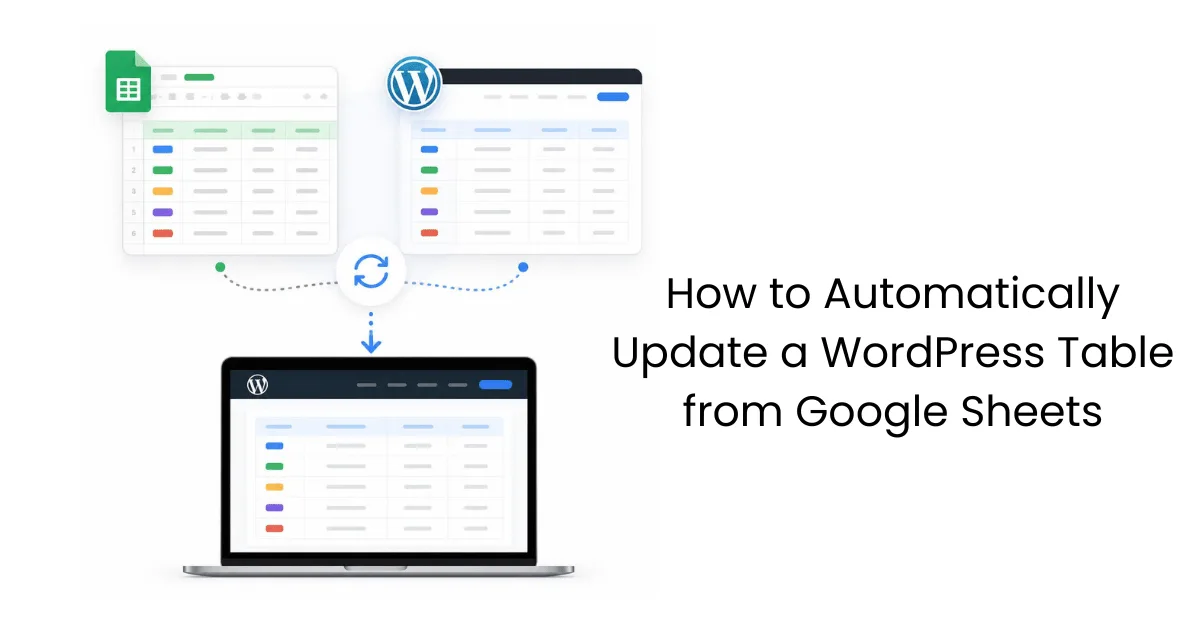
If you keep prices, menus, rosters, fixtures or other changing information on your WordPress website, there’s a good chance you’re doing the same job twice.
First, you update the spreadsheet.
Then someone has to log into WordPress and update the website.
And sooner or later, one of those updates gets missed.
The good news is that you can connect a Google Sheet directly to a WordPress table so the website follows the spreadsheet automatically.
Change the Google Sheet, and the table on your website changes too.
No copying. No pasting. No second round of data entry.
And, perhaps best of all, one less website job to remember.
Why manually updating website tables causes problems
Let’s say you look after the fixtures for a local sports club.
The club secretary keeps the season schedule in Google Sheets.
A game originally set for 3pm at home gets moved to 1pm at another ground.
The secretary updates the spreadsheet.
But nobody updates the website.
Saturday morning, a player checks the club website and sees the old information.
Now they’re heading to the wrong ground at the wrong time.
The spreadsheet was right.
The website wasn’t.
That creates two problems.
1. People stop trusting your website
If visitors discover that information on your website is out of date, they start looking elsewhere for answers.
Or they call you.
Or email you.
Which rather defeats the purpose of putting the information online in the first place.
For a business, outdated information can be even more costly.
An old price, wrong opening time or outdated menu can confuse customers and create unnecessary work for your team.
2. Someone has to keep doing the same work twice
The other cost is time.
If someone has already updated the information in Google Sheets, why should they then spend another evening copying those changes into WordPress?
It’s repetitive work.
And repetitive work is exactly the sort of thing your website should be helping you remove.

How to automatically update a WordPress table from Google Sheets
With Data Tables Pro by Supsystic the setup is straightforward.
Here’s the basic process.
Step 1: Start with your Google Sheet
Use the spreadsheet you already maintain.
In our example, that’s the club’s full season fixture list.
It contains the dates, opponents, venues, kickoff times and results.
You don’t need to recreate any of that inside WordPress.
You just need the Google Sheets share link.
Step 2: Import the Google Sheet into Data Tables
Inside WordPress:
1. Open Data Tables by Supsystic
2. Create a New Table
3. Choose Import from Google SheetsClick Import, then choose Google Spreadsheets
4. Paste in your Google Sheets link
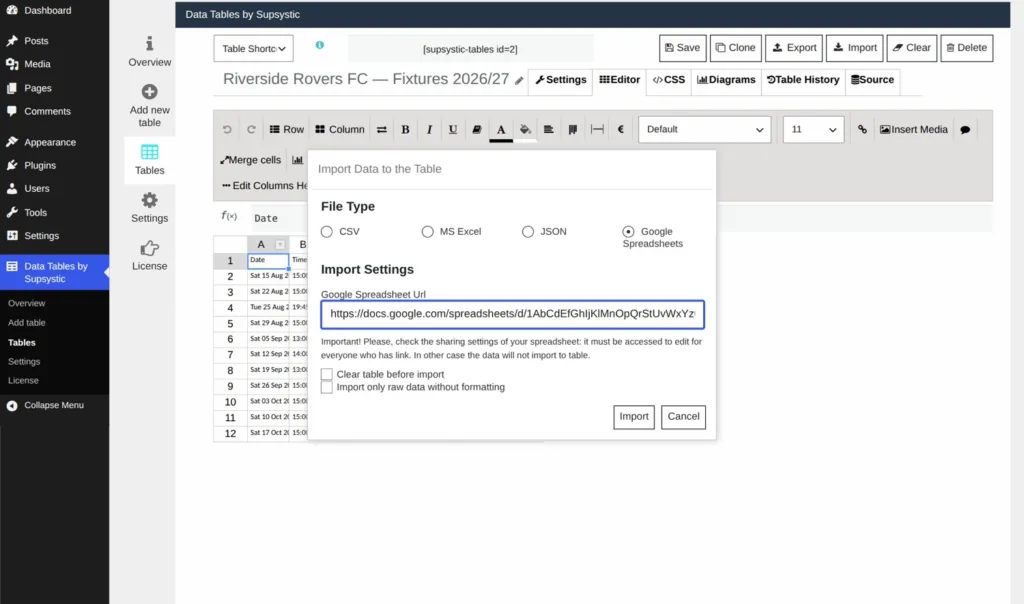
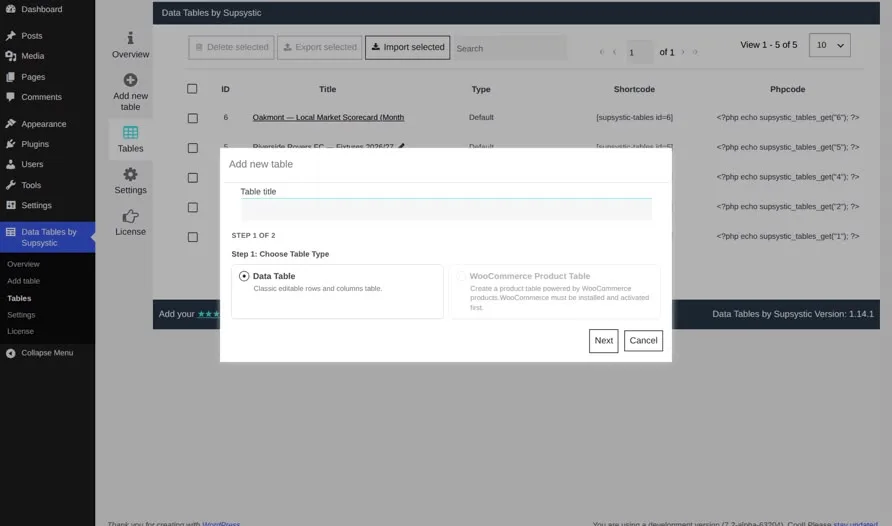
Your spreadsheet data is imported into a WordPress table.
At this stage, though, there’s an important distinction.
An import by itself is only a one-time copy.
If you change the spreadsheet later, that one-time imported table won’t automatically know about it.
So there’s one more step.
Step 3: Turn on Google Sheets Sync
Open the Source settings for your table.
Choose Google Sheets Sync and paste in the same Google Sheets link.
Save the table.
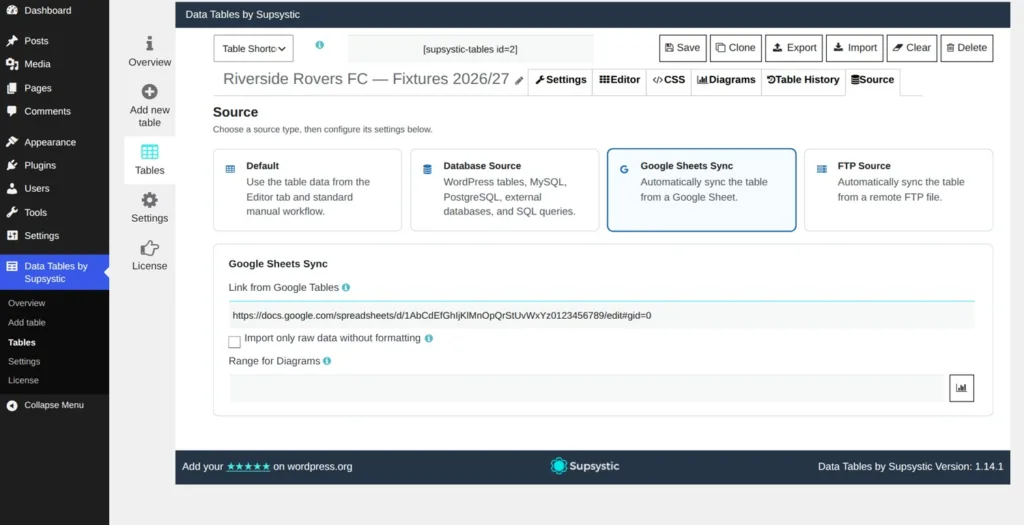
That’s the key setting.
From that point forward, your WordPress table follows the Google Sheet.
When the spreadsheet changes, the website can display the updated information without someone manually editing the page.
What happens after the table is connected?
Let’s go back to the sports club example.
The secretary enters Saturday’s result into the spreadsheet, just as she always has.
Or perhaps a game time changes.
Or the venue moves.It’s changed it in the same Google Sheet.
Nobody needs to log into WordPress.
Nobody needs to find the fixtures page.
Nobody needs to copy and paste the change.
Refresh the website table and the latest information is there.
The result is updated.
The new time is correct.
The venue matches the spreadsheet.
And somebody gets their evening back.

Your visitors get a better table too
Connecting Google Sheets to WordPress isn’t only about saving admin time.
Your website visitors can also get a much more useful way to view the information.
For example, a Data Tables table can allow visitors to:
• Sort information by date or another column
• Search for a particular opponent, item or entry
• View a clean, structured table instead of a raw spreadsheet
• Use colour coding to make important information easier to spot
In our fixtures example, results can even be colour-coded automatically — green for a win, for instance.
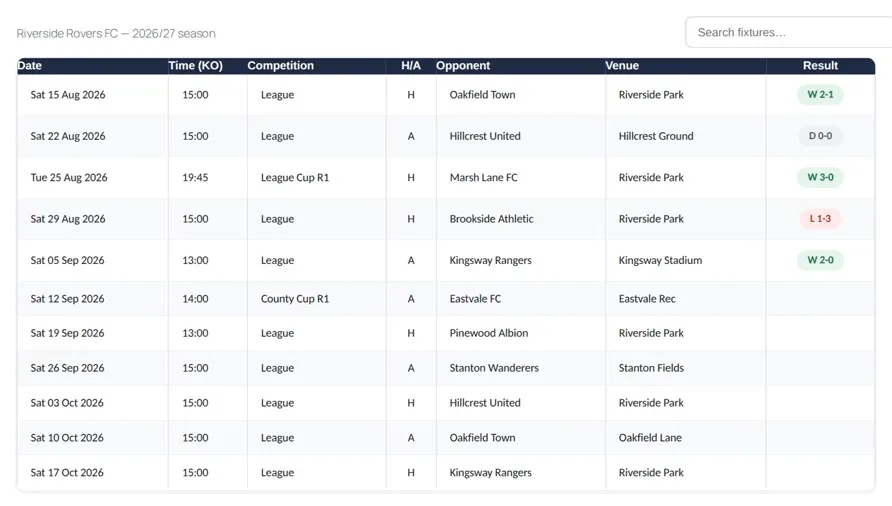
Hopefully, there’ll be plenty of green.
The important part is that the person maintaining the data doesn’t have to learn a new system.
They keep working in Google Sheets.
Your website handles the presentation.
What else can you automatically update from Google Sheets?
Price lists
If your prices already live in a Google Sheet, you can update them there rather than editing both your spreadsheet and your website.
That reduces the chance of customers seeing outdated pricing.
Restaurant or cafe Menus
Prices change.
Items come and go.
Specials change.
Instead of maintaining a spreadsheet and a separate website menu, one Google Sheet can feed the table displayed online.
Staff rosters
If your team roster changes regularly, a synced WordPress table can display the latest version without someone rebuilding it on the website.
Event schedules
Change the date, venue or time in the spreadsheet and keep the website schedule aligned.
Membership or club information
Clubs and associations often run on spreadsheets.
If that’s already where the information is being maintained, there’s little benefit in creating a second manual maintenance job inside WordPress.
Results, rankings and statistics
Any information that changes regularly and works naturally in rows and columns is a good candidate.
The question to ask is simple:
What information are you currently updating twice?
That’s usually where the easiest automation opportunity is hiding.

Why syncing is better than simply embedding a Google Sheet
You can embed a Google Sheet directly into a WordPress page.
But that’s not always the best experience for your visitors.
An embedded spreadsheet often still looks and behaves like a spreadsheet.
Using the Google Sheet as the data source instead allows you to present that information as a proper website table.
You keep the easy editing experience of Google Sheets while giving visitors a cleaner WordPress experience.
That’s a useful distinction:
Google Sheets manages the data.
WordPress presents the data.
Each tool does the job it’s best at.
The real benefit: one job disappears
This feature isn’t really about spreadsheets.
It’s about removing a repetitive job.
Before:
Update spreadsheet> log into WordPress> find page> update table> check changes.
After:
Update spreadsheet.
That’s it.
The secretary keeps doing what they have always done.
Your employee keeps updating the same price sheet.
Your restaurant manager keeps maintaining the same menu list.
But the website is no longer another separate job.
And when the source information changes, your website is much less likely to be left behind.
Watch: Auto-Update WordPress Tables from Google Sheets
In Episode 1 of Website Challenges Solved, we walk through the complete process using a sports club fixture list.
You’ll see how to:
– Import a Google Sheet into Data Tables
– Turn on Google Sheets sync
– Add the table to a WordPress page
– Update the original spreads
– See those changes appear on the website
The feature is called Auto Update from Google Sheets and is included with Data Tables Pro by Supsystic.
If you already keep information in Google Sheets, take a look at the tables on your website.
There may be a job you can stop doing altogether.
Data Tables Pro also comes with a 30-day money-back guarantee, so you can try it with your own prices, fixtures, rosters or other regularly updated tables and see how it fits your workflow.