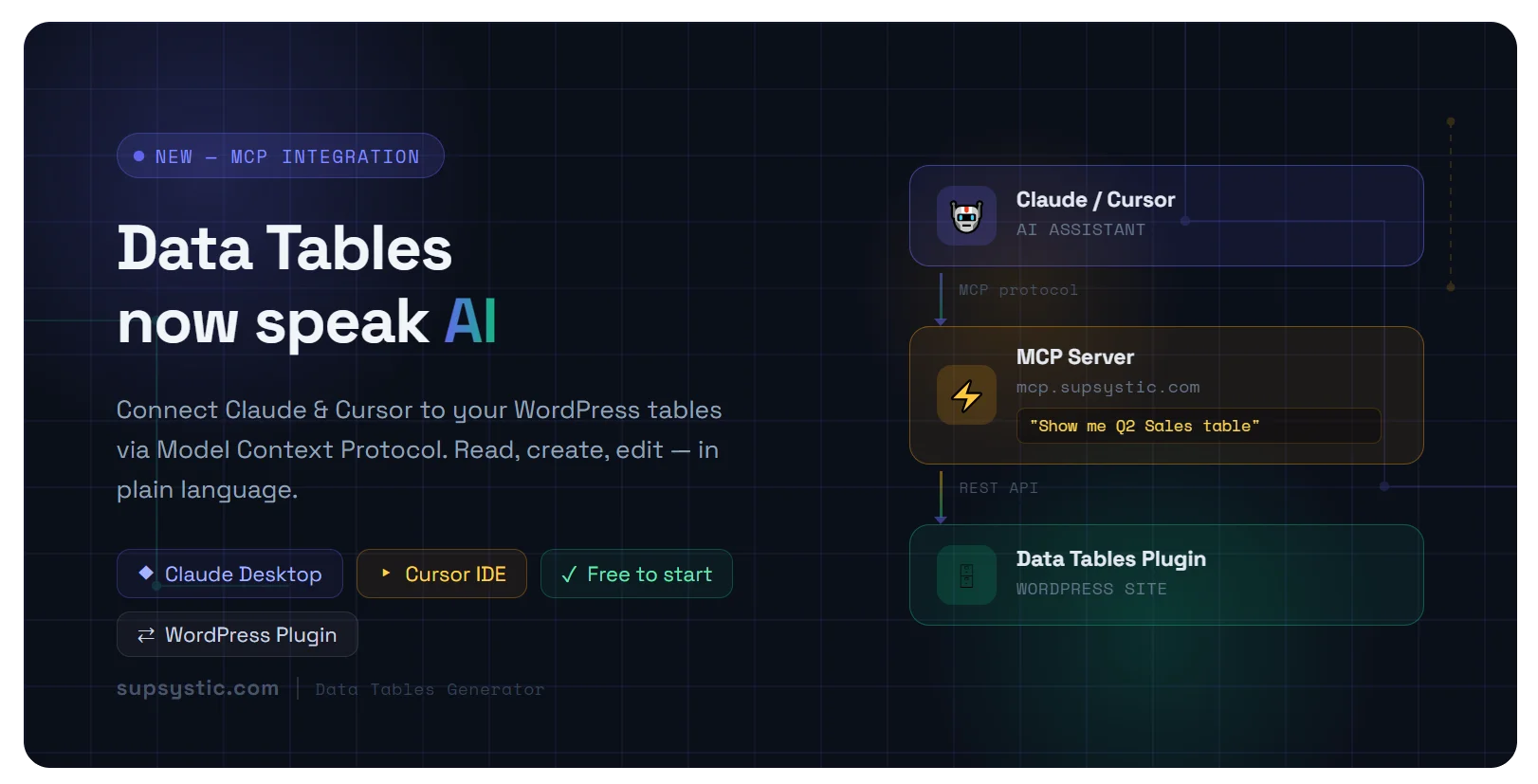
What’s New: Supsystic Tables, Powered by AI
We’re excited to announce that Data Tables Generator by Supsystic now has its own MCP server — which means you can connect your WordPress data tables directly to AI assistants like Claude and Cursor, and work with your data in a completely new way.
FAQ
What is MCP and Why Does It Matter?
MCP (Model Context Protocol) is an open standard that lets AI assistants connect to external tools and data sources. Instead of copying and pasting your table data into a chat window, MCP creates a live bridge — the AI can read and interact with your actual tables directly.
In plain terms: you open your AI assistant, ask a question about your tables, and it just knows what’s in them.
The MCP integration is available right now for all Data Tables Generator users.
Free Version: Read & Analyze Your Tables with AI
Even on the free version of Data Tables Generator, you can now connect your tables to an AI assistant. Here’s what you get:
- Read any table from your WordPress site
- Analyze data — spot trends, summarize content, answer questions
- List all available tables
- Get table settings and structure
Ask things like:
“What’s the average value in column 3?” “Summarize the products in my pricing table.” “Which rows have a value greater than 100?”
Your AI assistant will pull the data straight from your WordPress tables and respond intelligently.
PRO AI Addon: Full Control — Create, Edit, Delete, Import, Export
The free version gives you a genuinely powerful starting point — you can read, query, and analyze all your WordPress tables through Claude or Cursor right now, without spending a cent. For many users, that’s already a game-changer.
But if you want to go further — if you want AI to not just read your tables but actually work with them — that’s where Data Tables Generator PRO AI comes in.
With the PRO AI addon, you get full read/write access over MCP. That means you can ask Claude to create a brand new table from scratch, work with formulas and formatting, edit individual cells or entire rows, delete tables you no longer need, and import or export your data as JSON/CSV/EXCEL — all in plain English or other languages, without touching the WordPress admin panel at all. Table settings and configuration are also fully accessible, so you can restructure and update your tables just by having a conversation.
In practice, it looks like this:
“Create a new table called ‘Q2 Sales’ with columns: Product, Units, Revenue”
“Update row 5 in my pricing table — change the price to 49.99”
“Export my inventory table as JSON”
“Add a ‘Total’ column that multiplies Quantity by Price for every row”
“Make the header row bold and highlight rows where Revenue is below 500”
“Calculate the average order value across all rows and add a summary row at the bottom”
If you’re managing tables regularly — product listings, pricing, schedules, data reports — PRO AI turns Claude into a genuine assistant that can handle the work for you. It’s not a gimmick; it’s a real workflow upgrade.
Ready to try it? Get Data Tables Generator PRO AI for $30 per year, with $20 for renewal
How to Connect via Claude Desktop & Cursor IDE
Prerequisites
- Node.js installed — nodejs.org
- Claude Desktop or Cursor IDE
- Your WordPress site with Data Tables Generator plugin active
- A WordPress Application Password for your user
Step 1 — Install mcp-remote
Open your terminal (Command Prompt or PowerShell on Windows) and run:
npm install -g mcp-remoteVerify it installed correctly:
mcp-remote --versionStep 2 — Generate a WordPress Application Password
- Go to your WordPress admin ? Users ? Profile
- Scroll down to Application Passwords
- Enter a name (e.g.
Claude MCP) and click Add New Application Password - Copy the generated password — it looks like:
xxxx xxxx xxxx xxxx xxxx xxxx
Step 3 — Edit the Config File
Claude Desktop config file location:
- Windows:
C:\Users\YOUR_USERNAME\AppData\Roaming\Claude\claude_desktop_config.json - macOS:
~/Library/Application Support/Claude/claude_desktop_config.json
or Click in Claude Desktop -> Settings -> Developer -> Edit Config
Cursor IDE config file location:
- Windows:
C:\Users\YOUR_USERNAME\.cursor\mcp.json - macOS / Linux:
~/.cursor/mcp.json
or Click in Cursor IDE -> Cursor Settings -> Tools & MCP -> New MCP Server
Step 4 — Add This Configuration
Paste the following, replacing the values with your own:
{
  "mcpServers": {
    "supsystic-data-tables-mcp-remote": {
      "command": "C:\\Users\\YOUR_USERNAME\\AppData\\Roaming\\npm\\mcp-remote.cmd",
      "args": [
        "https://mcp.supsystic.com/dt/mcp",
        "--header",
        "X-WP-URL: https://your-site.com",
        "--header",
        "X-WP-User: your_wp_username",
        "--header",
        "X-WP-App-Password: xxxx xxxx xxxx xxxx xxxx xxxx"
      ]
    }
  }
}
On macOS / Linux, the command path is different:
{
  "mcpServers": {
    "supsystic-data-tables-mcp-remote": {
      "command": "mcp-remote",
      "args": [
        "https://mcp.supsystic.com/dt/mcp",
        "--header",
        "X-WP-URL: https://your-site.com",
        "--header",
        "X-WP-User: your_wp_username",
        "--header",
        "X-WP-App-Password: xxxx xxxx xxxx xxxx xxxx xxxx"
      ]
    }
  }
}
What Each Parameter Means
| Parameter | Description |
|---|---|
mcp-remote.cmd |
The MCP bridge that connects AI to remote MCP servers |
https://mcp.supsystic.com/dt/mcp |
The Supsystic MCP server endpoint |
X-WP-URL |
Your WordPress site URL |
X-WP-User |
Your WordPress username |
X-WP-App-Password |
Application Password generated in Step 2 |
Step 5 — Restart & Test
Restart Claude Desktop or Cursor IDE completely, then try:
“List all my data tables”
You should see your tables returned directly from your WordPress site. ?
Troubleshooting
mcp-remote command not found? Make sure Node.js is installed and try the full path: C:\Users\YOUR_USERNAME\AppData\Roaming\npm\mcp-remote.cmd
Authentication error? Double-check your Application Password — copy it exactly as WordPress generated it, spaces included.
Connection refused? Make sure your WordPress site is publicly accessible (not just localhost) since the Supsystic MCP server at mcp.supsystic.com needs to reach it.
How to Connect via Claude (Connectors) only for PRO+ Claude Users
If you’re using Claude.ai in the browser (or the desktop app), you can connect via the MCP Connector feature.
Step 1 — Open Claude.ai or Claude Desktop Settings
Go to Claude -> Settings -> Connectors.
Step 2 — Add a New MCP Server
Click “Connectors” -> “Add custom connector” and fill in:
- Name:
Supsystic Data Tables MCP - Remote MCP server URL:
https://mcp.supsystic.com/dt/mcp - Press “Advanced settings” and fill “OAuth Client ID” and “Client Secret” – required!
- OAuth Client ID:
Claude - OAuth Client Secret:
Claude
Press “Add” and you will be redirected to Supsystic Data Tables MCP Login Form and fill in:
- WordPress Site URL:
https://yourwpsite.com - Admin username (REST-API token author):
youradmin - Application Password (Generate in WordPress -> Users -> Profile -> Application Passwords):
xxxx xxxx xxxx xxxx xxxx xxxx
Press “Connect”. If you entered the correct credentials, Claude will open and the connection will be established successfully.
Step 3 — Start a Conversation
Open a new chat. Claude will now have access to your Supsystic tables. Try:
“Show me the structure of my tables” “How many rows are in my Products table?”
Ready to try it? Get Data Tables Generator PRO AI for $30 per year, with $20 for renewal
Have questions or need help with the setup? Reach out to our support team — we’re happy to help you get connected.