Most visitors leave without buying, booking or signing up, and most of them never come back. An exit-intent popup gives you one last, polite word before they go: a discount for the first order, a reminder of the cart they are leaving, or a simple question about what stopped them. Because it appears only when someone is already on the way out, it does not interrupt anyone who is still reading.
This guide sets up an exit-intent popup in WordPress with the free CES — Popup Builder, Optin Forms, CRM & Email Marketing Automation plugin, and then shows ten examples you can start from. The demo is the trip page of a fictional tour operator, Northbound.
What an exit-intent popup is
An exit-intent popup opens when the mouse pointer leaves the page, for example toward the browser’s tabs, the address bar or the close button. That movement is the clearest sign a desktop visitor is about to leave, so the popup reaches people at the moment you would otherwise lose them, and stays out of the way of everyone else.
The best exit popups give something real: money off, free shipping, a saved cart, a useful guide, or the chance to tell you what was missing.
What you need
- WordPress with any theme.
- CES, free on WordPress.org and used on 10,000+ sites. Install it from Plugins → Add New Plugin (search for “CES Supsystic”) or download it here.
The exit trigger, the popup editor, forms, the contact list and reports are all part of the free version.
Step 1. Start from a template
Open Customer Engagement → Popups → Add. CES has 200+ templates for popups, forms and emails, grouped by purpose. Click Sales & Promotions: you will find designs made for the moment of exit, such as Exit Intent Door Ajar, Cart Recovery Boutique Bag, Exit Survey Before You Go and Free Shipping Parcel. Every template can be changed in the free editor, and you can build your own popup from scratch.
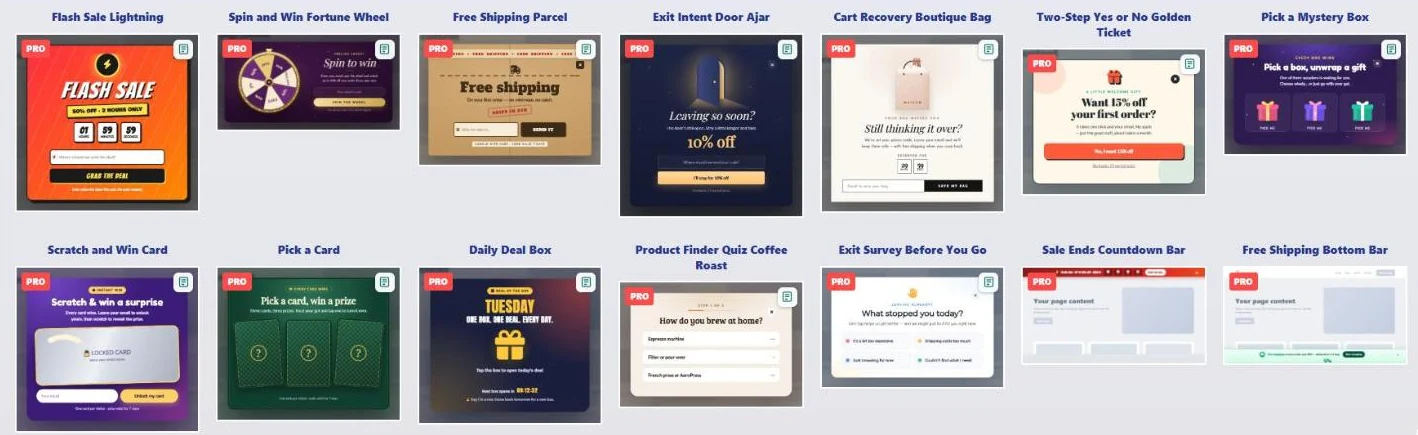
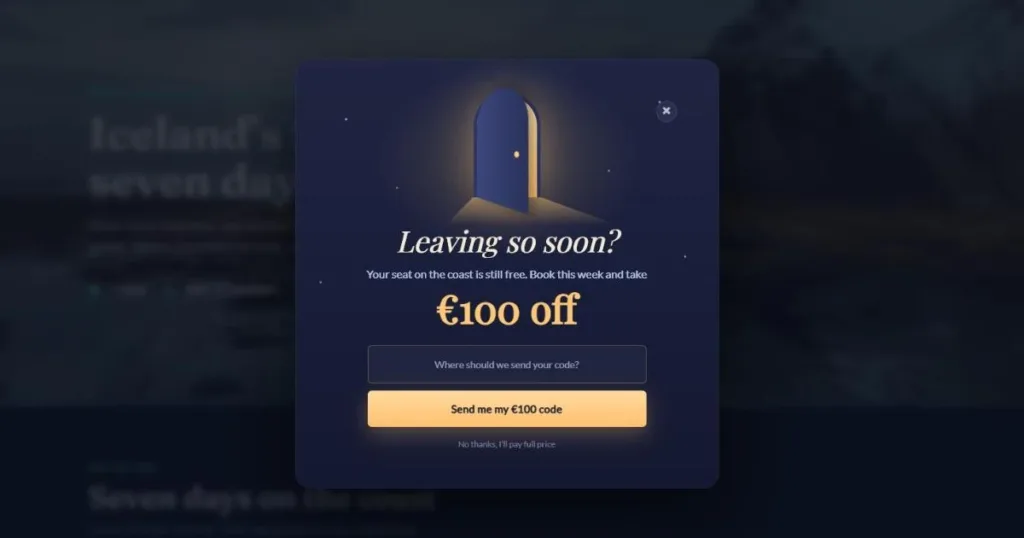
Click a card, give the popup a name and press Submit & Create. We used Exit Intent Door Ajar: a midnight-blue card with a glowing open door.
Step 2. Write an offer worth staying for
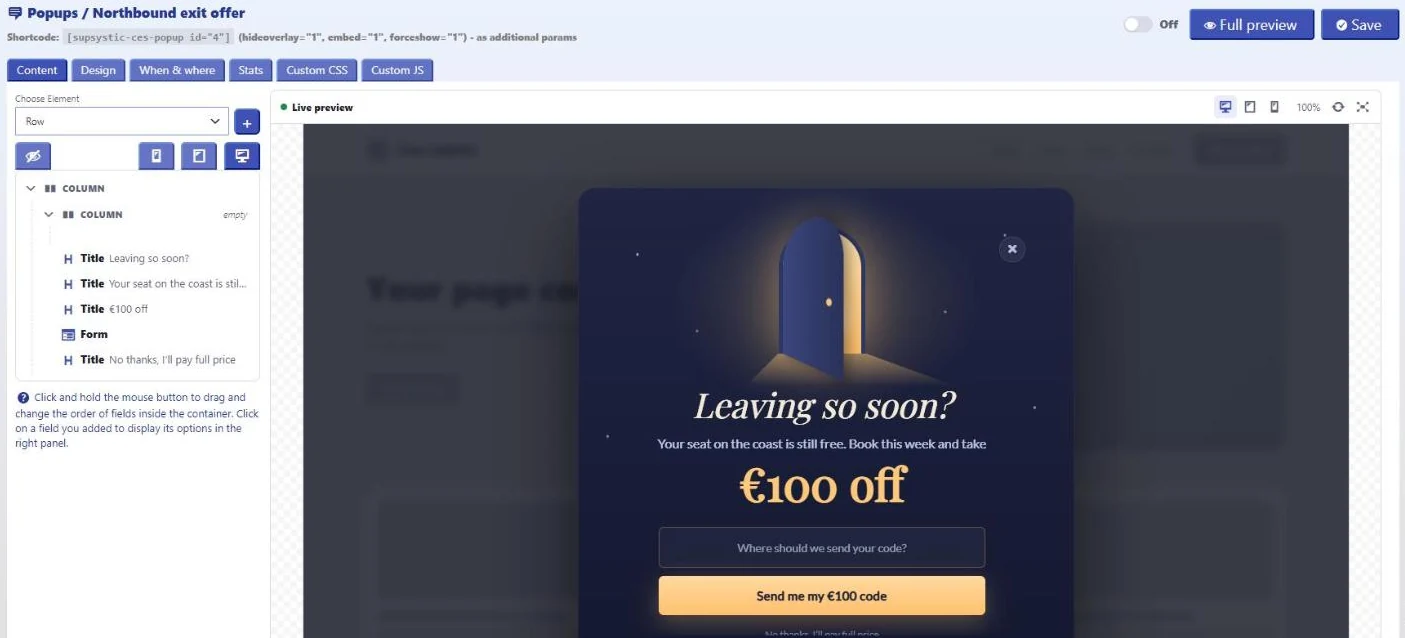
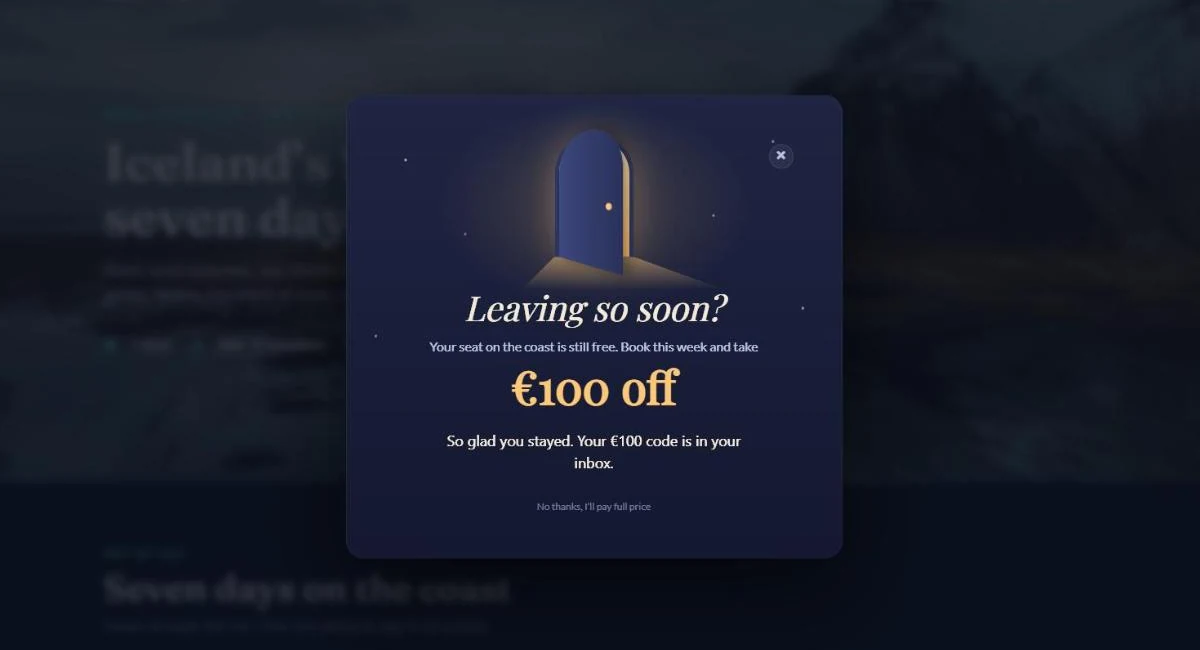
The template arrives complete: headline, text, the offer, an email field, a button and a “No thanks” link. Click an element in the list on the left and change it in the options panel; the live preview updates as you type. For Northbound we changed the text to “Your seat on the coast is still free. Book this week and take €100 off” and the button to “Send me my €100 code”.
Step 3. Switch on the exit trigger
Open the When & where tab:
- When to Show Popup: choose On exit from site. Exit templates have it set already.
- When to Close Popup: After user closes it is the friendliest choice.
- Show on Pages: all pages, or only the pages where the offer fits. Our popup appears only on the Iceland trip page.
- Popup is Enabled: turn it on and click Save.
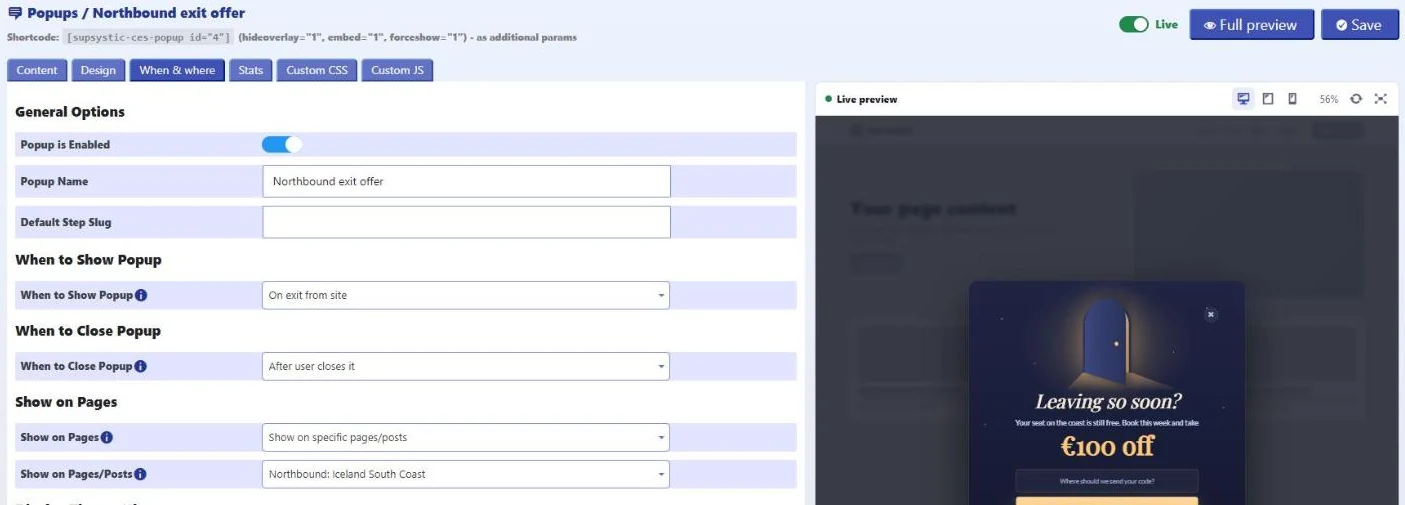
The same list holds the other triggers: on page load with a delay, on scroll, at the bottom of the page, after inactivity, on a click, after a comment or a WooCommerce purchase, and after several page views.
Step 4. Show it at the right frequency
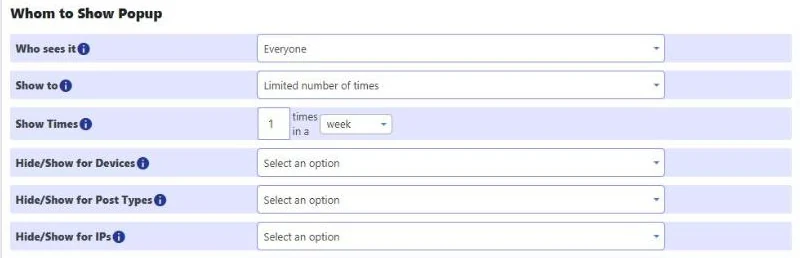
An exit popup that appears on every page view stops being an offer. Further down the same tab, under Whom to Show Popup:
- Show to: Limited number of times, for example once a week per visitor. Other options are first-time visitors only and “until they submit”.
- Who sees it: everyone, only unknown visitors, only known contacts, or contacts with chosen tags. Hide the first-order discount from people who already buy from you.
- Devices, post types, languages and search engines: show or hide the popup for each.
Exit intent follows the mouse, so it works for desktop visitors. For phones, add a second popup with the same offer that opens after the visitor scrolls through most of the page or stops interacting for a while.
Step 5. Deliver what you promised
When a visitor enters an email address, the form inside the popup saves them as a contact in the built-in CRM and shows a thank-you message in the same popup. Turn on the success email in the form options to send the code straight away; the guide How to build an email list in WordPress shows that part step by step.
Step 6. Measure what it brings
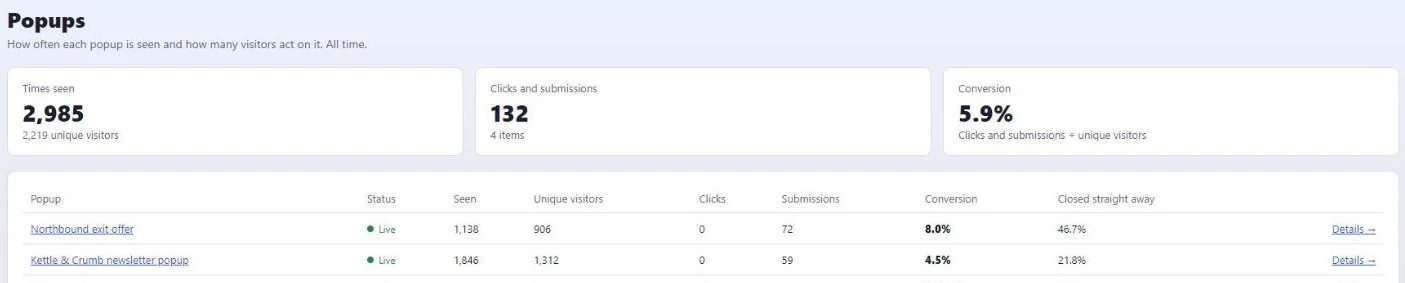
Open Reports → Popups. For every popup you see how often it was seen, by how many unique visitors, how many clicks and submissions it got, the conversion rate, and how many people closed it straight away.
10 exit-intent popup examples that convert
Each example is a ready template in CES. Swap in your own words and offer, set the trigger to On exit from site, and it is live.
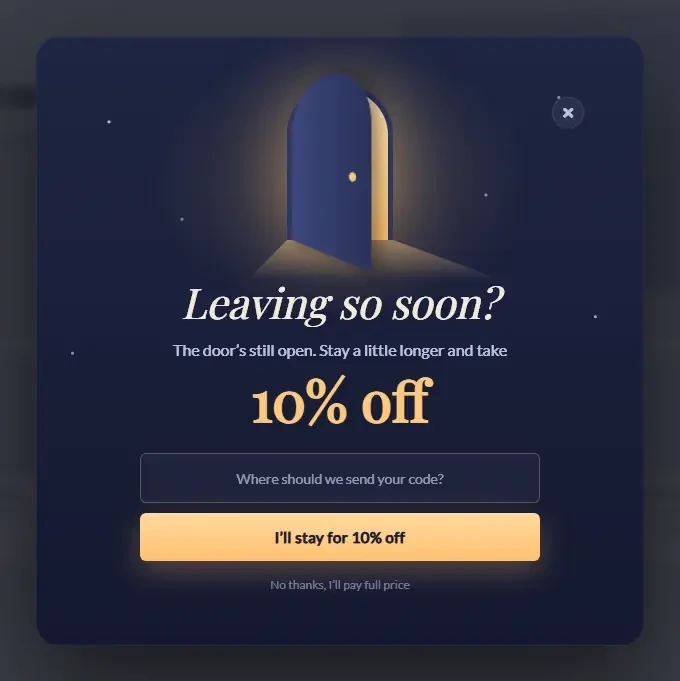
1. “Leaving so soon?” with a clear discount
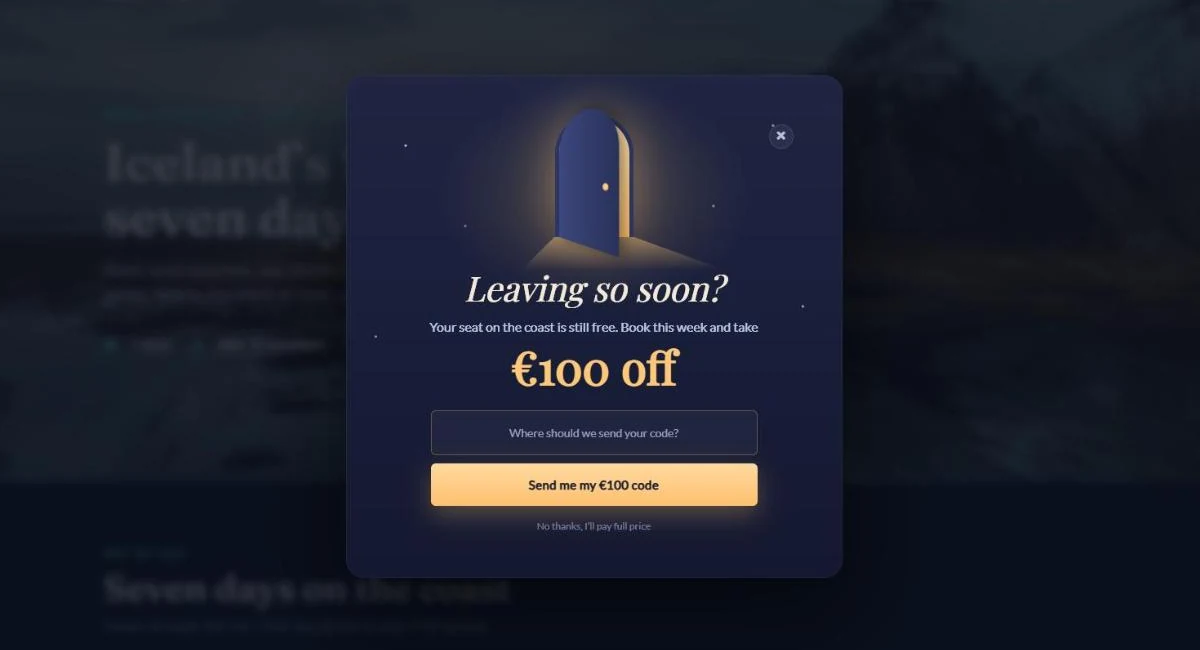
The classic exit offer, done with style: an open door, one number and one field. It works because the offer is visible in a single glance.
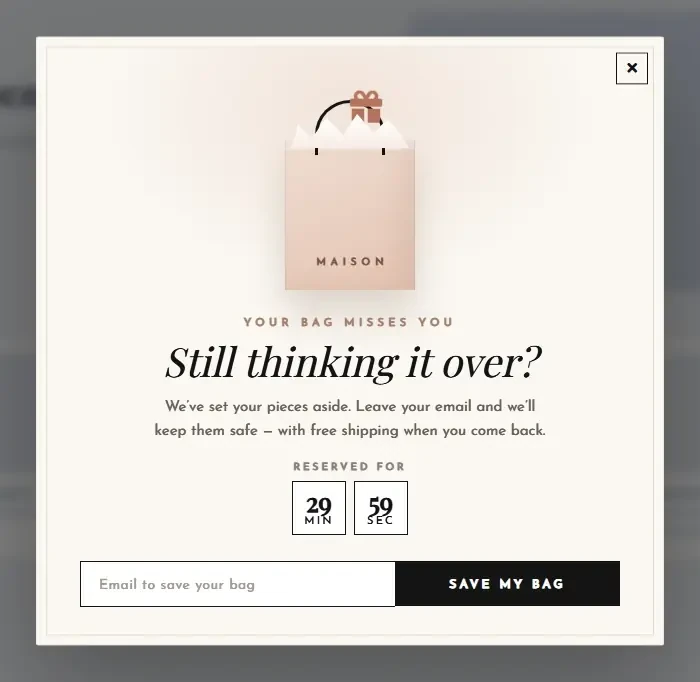
2. Cart recovery
For shops: remind visitors of the bag they are leaving behind and offer to save it to their email. A small timer adds gentle urgency.
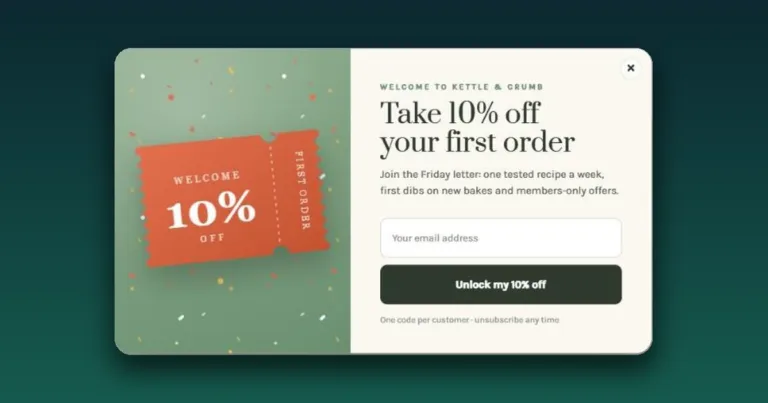
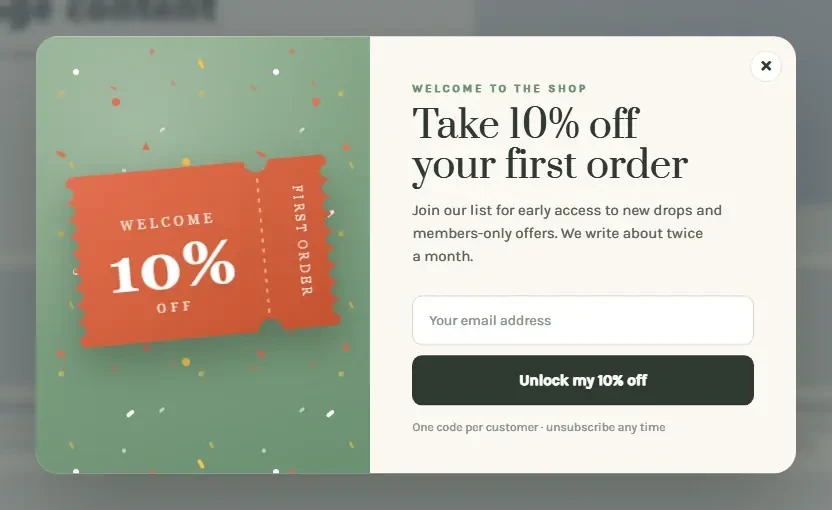
3. First-order discount (free)
A welcome ticket with the discount on it. It turns a first-time visitor into a subscriber and gives them a reason to come back and buy.
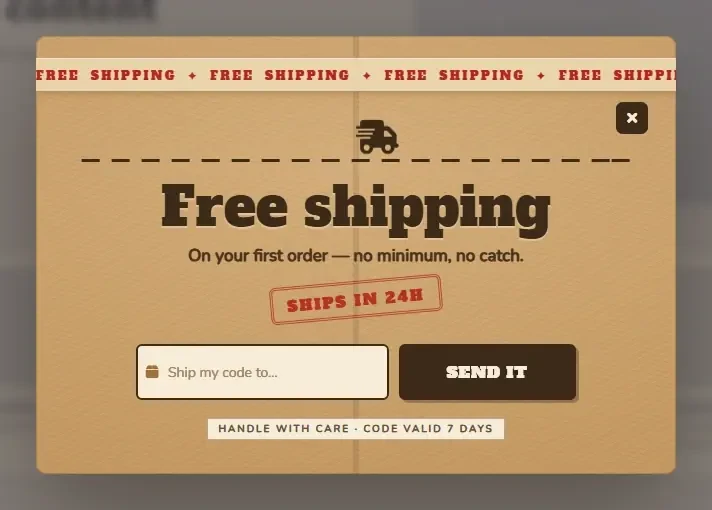
4. Free shipping
Shipping costs are a top reason for leaving a shop. Answer that objection right at the exit.
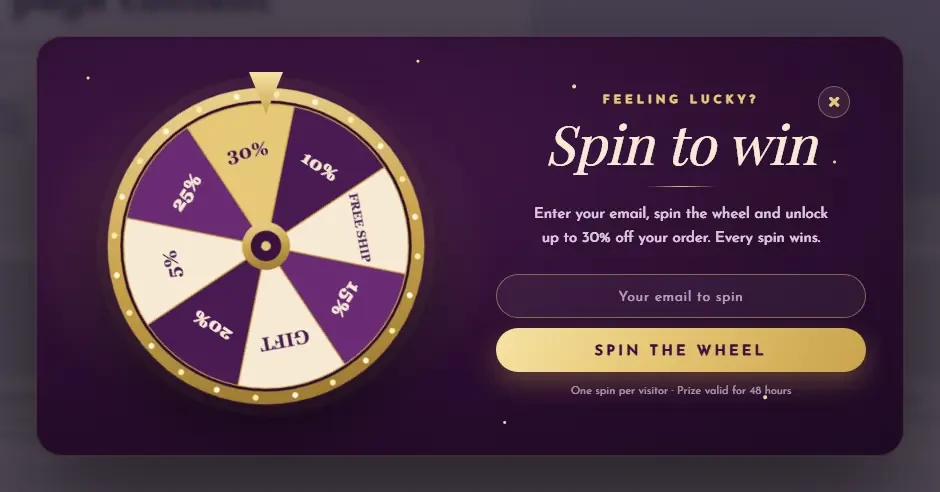
5. Spin to win
A game feels like a gift, not an ad. Visitors enter an email to spin the wheel and see their prize at once.
6. Exit survey
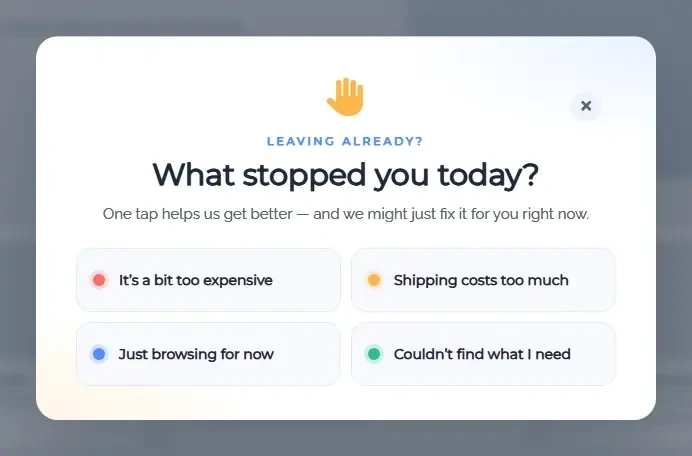
Not every exit needs an offer. Ask what stopped them with one click: price, shipping, just browsing or not found. The answers tell you what to fix.
7. Two-step yes or no
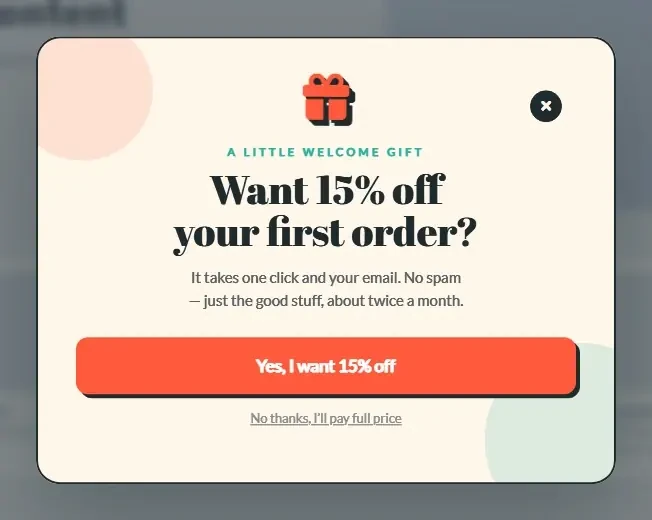
A first click on “Yes, I want 15% off” is easy; the email field comes in the second step. People who say yes once tend to finish.
8. Best-rate guarantee
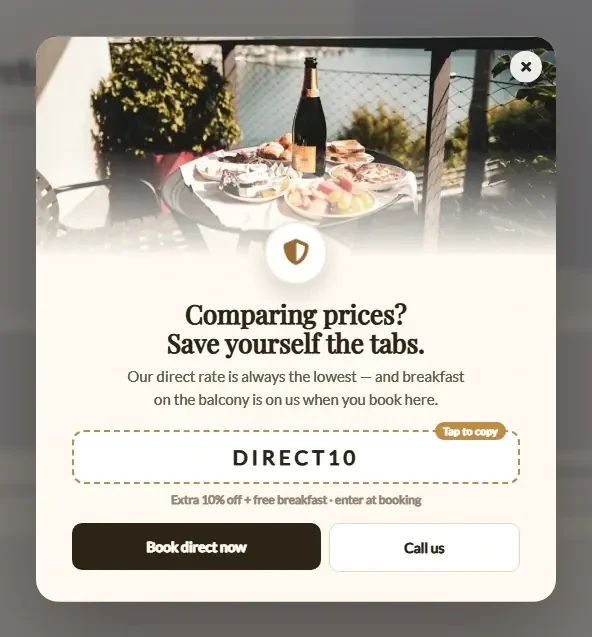
For hotels and booking sites: visitors often leave to compare prices. Promise the best direct rate and add a perk to book now.
9. Countdown offer
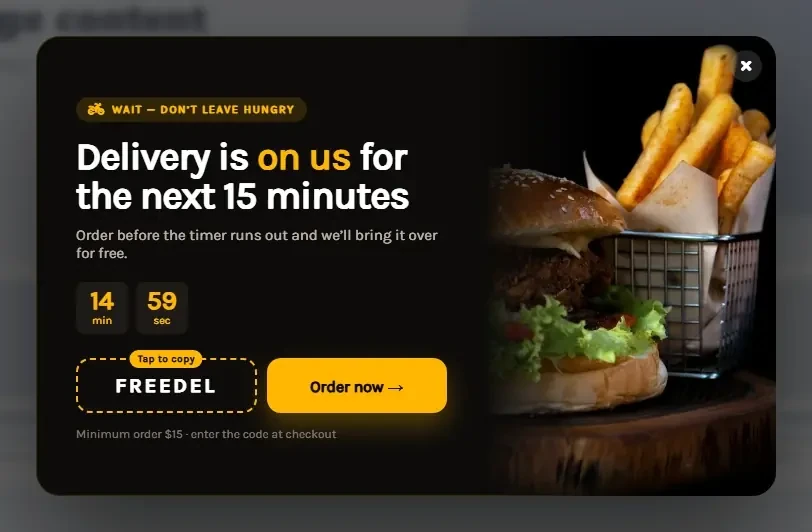
A real deadline, shown as a running timer, gives the offer a reason to act today. Great for food delivery and flash sales.
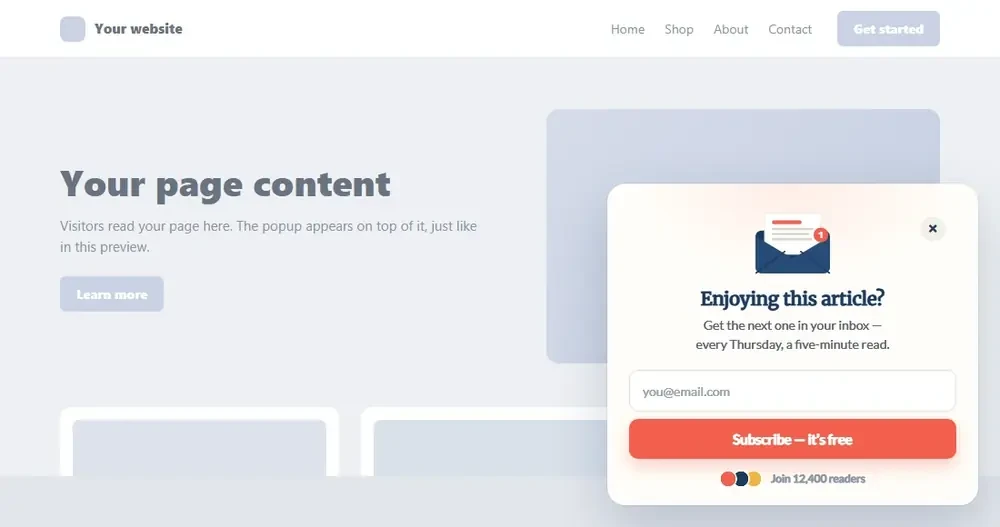
10. Blog slide-in (free)
For content sites, a small slide-in in the corner is enough: “Enjoying this article? Get the next one by email.” It respects the reader and still grows the list.
Exit-intent best practices
- Lead with the offer. The headline and the number should explain the popup without reading the small print.
- Ask for one thing. An email address is enough; every extra field costs signups.
- Always offer a way out. A visible “No thanks” link keeps the experience friendly.
- Match the page. A trip page gets a trip offer, a product page gets free shipping or a cart reminder.
- Limit the frequency. Once a week per visitor, and hide discount offers from existing customers with tags.
- Measure and adjust. Change one thing at a time, the offer, the headline or the design, and compare in Reports.
FAQ
What is an exit-intent popup?
A popup that opens when a visitor moves to leave the page, so you can make a last offer or ask a question before they go.
Is the exit-intent trigger free in CES?
Yes. The exit trigger, all other triggers, the popup editor, frequency rules, forms, the CRM and reports are free. The free editor lets you build any of these popups from scratch.
Does exit intent work on phones?
Exit intent follows the mouse pointer, so it works for desktop visitors. On phones, show the same offer with a scroll or inactivity trigger.
Will an exit popup annoy my visitors?
Not when it is shown once in a while and gives something useful. Limit it to once a week, keep a clear way to close it, and show it only on pages where the offer fits.
Can I show different exit popups on different pages?
Yes. Create one popup per offer and choose the pages, post types, devices or contact tags for each one.
Does it work with WooCommerce?
Yes. Use the cart recovery and free shipping templates on shop pages, and target known customers or new visitors with tags.
Set up your first exit popup
CES is free on WordPress.org and is used on 10,000+ WordPress sites. Pick a template, switch the trigger to On exit from site, and your exit offer can be live in a few minutes.
Download CES free | See Pro plans | Explore CES
More: Exit-intent popup feature · Popup builder · Build an email list · WordPress CRM · All free plugins