
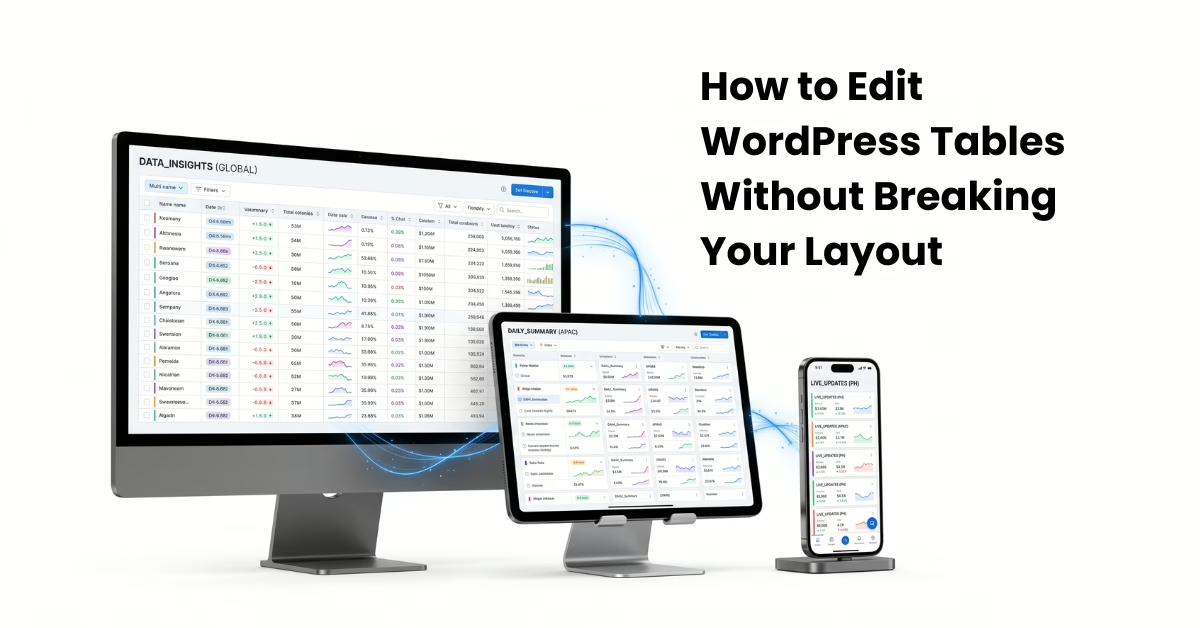
Editing a WordPress table should be simple.
You notice a price has changed. A product detail needs updating. A new row needs to be added. A fixture date has moved. A client sends through a revised spreadsheet.
In theory, it should take two minutes.
But if you’ve worked with tables in WordPress before, you’ll know how quickly “just one small change” can turn into a bigger job.
You update a cell, and suddenly a column shifts. You paste in new data, and the spacing looks odd. The desktop version looks fine, but the mobile layout has gone sideways. Or the table still works, but it somehow looks less professional than it did five minutes ago.
That is when editing a table stops being a content update and becomes a layout problem.
For website owners, this creates hesitation. You stop touching tables unless you absolutely have to. For developers and agencies, it becomes a steady stream of tiny support requests that interrupt the day.
The good news is that editing WordPress tables does not have to feel risky. The key is using the right table workflow from the start — and, when your tables need regular updates, using smarter tools to reduce the manual work.

Why WordPress Tables Break When You Edit Them
Most table problems come down to one simple issue: the table was not built for the way it is now being used.
A basic WordPress table block can be fine for a small static table. A page-builder table can work well if the content rarely changes. Even a raw HTML table might be okay if a developer set it up and nobody needs to touch it often.
The trouble starts when that table becomes part of your regular workflow.
Maybe it is a pricing table that changes every few months. Maybe it is a product list, stock table, sports fixture, event schedule, directory, comparison chart, or report. Suddenly the table is not just something you published once. It is information that needs to be maintained.
That is where fragile table setups start to show their cracks.
Copying data from Excel or Google Sheets can bring hidden formatting with it. Adding a new column can upset the mobile layout. Changing column widths can affect the whole design. Editing HTML directly can create unexpected display issues. And if each row or cell has been styled manually, even a small change can create inconsistencies.
The frustrating part is that the user often did nothing “wrong.” They were just trying to update their own website.
The real issue is that the table was not built as structured data. It was built as page content.
The Real Problem: The Wrong Tool for the Job

Many WordPress table problems do not begin when the table is edited.
They begin when the table is created with the wrong tool.
A simple table block, page-builder module, pasted spreadsheet, or manually coded HTML table can look fine on day one. If the table is never touched again, that may be enough.
But if the table needs regular updates, those tools can quickly become awkward.
A table that changes regularly is not just decoration on a page. It is structured data.
That means it needs to be managed more like a spreadsheet or database, and less like a paragraph of text. Prices, stock levels, schedules, product details, team results, directories, and reports all need a system that can handle ongoing edits without turning every change into a layout risk.
This is where a proper WordPress data table plugin becomes important.
A real data table plugin is designed to manage rows, columns, display settings, sorting, filtering, responsiveness, and data updates in a more controlled way. It gives the table a proper home inside WordPress instead of forcing it to behave like a static design element.
That one shift can make a big difference.
The Hidden Cost Is Not Just the Broken Table
When a WordPress table breaks, the visible problem is obvious. The layout looks wrong. The columns do not line up. The mobile view is messy. Something feels off.
But the hidden cost is often bigger.
It is the time spent checking the front end after every edit. It is the extra testing on mobile. It is the little cleanup jobs that follow what should have been a simple update. It is the worry that one small change may have affected something else.
For website owners, that creates anxiety. You start delaying updates because the table feels fragile. Prices stay out of date. Product details get old. Schedules become stale. Directories slowly become less useful.
Not because you do not care.
Because editing the table feels like opening a box of angry bees.
For developers and agencies, the same problem shows up as small recurring requests.
“Can you update this row?”
“Why does this column look different?”
“Can you add this new pricing option?”
“Can you fix how this looks on mobile?”
“I pasted in new data and now the table looks strange.”
None of these jobs are huge on their own. But together, they eat time and create drag.
That is why the goal is not just to stop tables breaking.

How to Edit WordPress Tables More Safely
If you are editing tables manually, there are a few habits that can save a lot of pain.
The first is to create a backup or duplicate before making major changes. It may feel like an unnecessary extra step, especially when the edit looks simple, but it gives you a safety net. If something goes wrong, you are not trying to rebuild the old version from memory.
It also helps to be careful when copying data from spreadsheets. Excel and Google Sheets can carry hidden formatting into WordPress. That formatting may bring unwanted fonts, spacing, colours, merged cells, or other odd behaviour. If possible, paste plain data or import a clean CSV through a proper table tool.
For larger tables, avoid changing everything in one hit. Make a few controlled edits, save, and check the result. This makes it much easier to find the source of a problem if something changes unexpectedly.
And always check the live page, not just the WordPress editor.
Tables can behave differently on the front end. A table may look fine while editing but display poorly once published. Mobile view is especially important, because tables often fail on small screens before they fail on desktop.
The final habit is the most important: if the table matters to the business, use a proper data table plugin.
Why a Proper WordPress Data Table Plugin Helps
A proper WordPress data table plugin helps because it separates the table’s data from the way the table is displayed.
That sounds technical, but the idea is simple.
You want to be able to update the information inside the table without accidentally changing the layout around it.
Instead of manually adjusting rows, columns, spacing, and styling every time something changes, a good table plugin gives you a more controlled place to manage the data. It also gives you features that ordinary table blocks usually do not handle well, such as sorting, searching, filtering, responsive display, imports, and shortcode placement.
This is the difference between a table that looks okay today and a table you can keep maintaining over time.
Data Tables by Supsystic is designed for this kind of workflow: creating, displaying, managing, and updating structured tables inside WordPress.
If you are still using basic blocks, pasted spreadsheet content, or hand-coded HTML for important tables, moving to a proper WordPress data table plugin can reduce a lot of the layout risk.
But there is still another challenge.

Where Manual Editing Still Gets Slow
A good table plugin gives you a safer foundation.
But it does not remove every repetitive task.
If you only need to change one cell every few months, manual editing is probably fine. But if you are updating dozens of rows, applying the same change across a whole column, cleaning imported data, adding calculated columns, or merging new information into an existing table, the work can still become tedious.
This is especially true when the same kind of update happens again and again.
Increase all prices by 5%.
Clean the date format.
Find low-stock items.
Add a calculated total.
Remove old entries.
Import a new CSV.
Update the schedule for the new season.
At that point, the problem is no longer just layout safety.
The problem is workflow.
You already know what you want changed. The slow part is clicking through the table and applying the change manually.
That is where AI-assisted table editing becomes useful.
Not because AI is magic, and not because it should be trusted blindly with everything.
A Faster Way to Edit WordPress Tables with AI
AI changes the table editing workflow by letting you describe the result you want, instead of manually editing every row and cell.
For example, instead of opening a pricing table and updating each amount by hand, you could ask:
“Increase all prices in this column by 5%.”
Instead of exporting an inventory table to a spreadsheet to calculate totals, you could ask:
“Add a Total Value column using quantity x unit price.”
Instead of manually cleaning inconsistent data, you could ask:
“Standardise the date format and clean the currency values.”
That is a very different way to work.
You are no longer treating the table as a fragile layout object. You are treating it as data that can be queried, updated, cleaned, and managed.
The goal is not to replace your table. The goal is to remove the slow, repetitive, error-prone parts of managing it.
For small, rarely updated tables, this may not matter much. Manual editing might be enough.

What the Supsystic AI Add-On Helps You Do
The Supsystic AI Add-On is designed for users who want to create, edit, update, clean, import, export, and manage Data Tables using plain-English instructions.
It is especially useful when your tables are not static.
You might use it to update prices across multiple rows, clean inconsistent data, add calculated columns, restructure imported spreadsheet content, create new tables from raw data, or reduce repetitive manual updates.
There is an important distinction here.
With a compatible AI setup, users can query or analyse table data in read-only mode.
But if you want AI to actually create, edit, update, import, export, or write changes back to your tables, that is where the AI Add-On comes in.
Put simply:
Read-only AI can help you understand your data.
The AI Add-On helps you work with it.
Real-World Examples of AI-Assisted Table Editing
Imagine you have a pricing table and all annual prices need to increase by 5%.
The manual way means opening the table, finding each price, calculating the new amount, updating each cell, checking your work, and testing the page afterwards.
With AI-assisted editing, the instruction could be as simple as:
“Increase all annual prices by 5% and round to the nearest dollar.”
Or imagine an inventory table with product names, SKUs, quantities, and unit prices. You want to add a new column showing total value.
The manual way may involve exporting the data, calculating values in a spreadsheet, re-importing it, and checking that the layout still works.
With AI, you could ask:
“Add a Total Value column using quantity x unit price.”
The same idea applies to messy imported data. If a CSV contains inconsistent dates, mixed capitalisation, duplicate rows, or messy currency values, cleaning it manually can be painfully slow.
AI-assisted editing lets you ask for the cleanup directly:
“Standardise the date format, clean currency values, and remove duplicate entries.”
For product lists, you might ask:
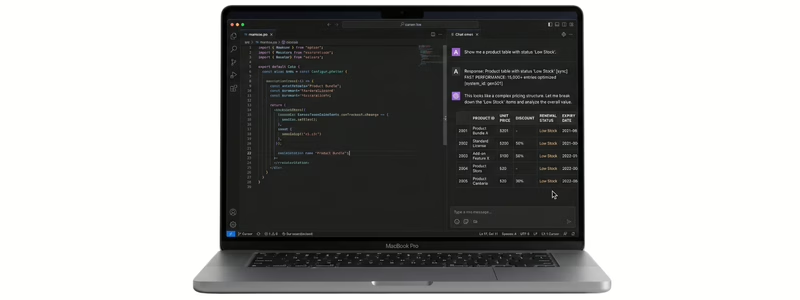
“Find all products where stock is below 10 and mark them as Low Stock.”
For schedules or sports fixtures, you might ask:
“Add these new fixtures, remove completed games, and sort the table by date.”
These are not exotic AI use cases. They are normal table maintenance jobs.
That is exactly why AI can be useful.

Who Benefits Most?
AI-assisted table editing is useful for anyone who manages WordPress tables regularly, but it is especially helpful for two groups.
The first group is business owners and website managers.
If you manage your own site, you probably do not want to call a developer every time a price changes or a new row needs to be added. You also do not want to break the page while trying to make a simple update.
A better table workflow gives you more confidence. You can keep important data current without feeling like every edit is a risk.
The second group is developers and agencies.
If you manage client websites, table edits can become a quiet time drain. They are not big projects, but they still interrupt your day. A client needs one row changed, then another column added, then a layout issue fixed after they pasted something from a spreadsheet.
A proper data table setup, supported by AI-assisted editing where appropriate, can reduce those tiny support jobs. It can also make client handover easier, because routine table changes become less fragile.
For agencies, this can also create a practical upgrade path for clients who already rely heavily on tables.
When Manual Editing Is Still Enough
Not every WordPress table needs AI.
If your table is small, simple, rarely updated, or mostly decorative, manual editing may be perfectly fine.
There is no need to overcomplicate a table that only changes once or twice a year.
But if your table is connected to real business operations, the stakes are higher.
Pricing, stock, schedules, directories, reports, products, events, services, client data, and internal records all need more care. If that data is wrong, stale, or hard to update, the website becomes less useful.
For those tables, a proper data table plugin becomes much more important.
Final Thoughts: Edit the Data, Not the Layout
Most WordPress table problems happen because people are forced to edit data in a way that also affects layout.
That is where the risk comes from.
A better workflow keeps your data, formatting, and display settings under control.
Start with the right tool: a proper WordPress data table plugin.
Then, if your tables change regularly, consider adding AI so you can update, clean, analyse, and manage table data using plain-English instructions instead of manual cell-by-cell editing.
Editing WordPress tables should not feel like defusing a bomb with oven mitts.
With the right workflow, it can be much simpler:
Keep the layout stable.
Keep the data accurate.
Make updates with more confidence.
FAQs About Editing WordPress Tables
1. Can I edit WordPress tables without breaking the layout?
Yes, but the tool you use matters.
Basic table blocks, page-builder tables, and pasted HTML tables can be fragile when edited. A proper WordPress data table plugin helps keep your data, layout, and display settings more controlled.
2. Why do WordPress tables break when I edit them?
WordPress tables often break because the table was built as static page content rather than structured data.
Common causes include pasted spreadsheet formatting, manual HTML edits, changed column widths, responsive display issues, and using simple table tools for data that needs regular updates.
3. What is the best way to edit tables in WordPress?
For simple tables, manual editing may be enough.
For important or regularly updated tables, it is better to use a dedicated WordPress data table plugin so your table data and layout are easier to manage.
If you need to make frequent or bulk changes, AI-assisted editing can make the process faster and less repetitive.
4. Can AI edit WordPress tables?
Yes, with the right setup.
The Supsystic AI Add-On allows compatible AI tools to help create, edit, update, clean, import, export, and manage Data Tables using plain-English instructions.
5. Do I need AI to edit WordPress tables?
Not always.
If your tables are small and rarely changed, manual editing may be fine.
AI becomes useful when you regularly update prices, stock, schedules, product lists, reports, directories, or larger datasets.
6. Can AI bulk edit WordPress table data?
Yes.
AI-assisted workflows are especially useful for bulk edits, such as increasing prices, updating stock labels, cleaning imported data, adding calculated columns, or applying changes across many rows.
7. Is AI table editing safe?
AI-assisted editing should still include a review step.
For important changes, it is smart to back up or export the table first, preview changes where possible, and check the live page after applying updates.
AI should reduce repetitive work, but you should still review important data before publishing changes.